Sunday, 14 December 2014

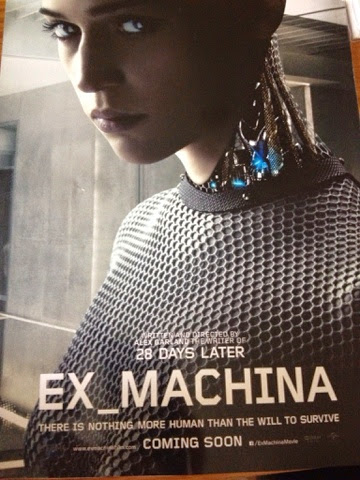
Create an A4 advert for your media product


Create a promotional advert for your film in Photoshop.


You must aim to include:

Appropriate Text/Pull quotes

Tag Line

Certification information

What kind of release it will be (wide/platform/exclusive limited runs/territorial release.)

Choice of font will reflect the genre – and create a brand identity.

Image and colours should be chosen to appeal to the audience.

Must include appropriate conventional information.


Create a promotional advert for your magazine in Photoshop.


You must aim to include:

Appropriate Text/Pull quotes/sell lines 

Who will be the publishing house?

How often is it published?

Which platforms will your magazine be available on?

Choice of font will reflect the genre of music – and create a brand identity.

Image and colours should be chosen to appeal to the audience.

Must include appropriate conventional information.

Tuesday, 9 December 2014

How to wrap text around an image in InDesign

To wrap text around an image make sure that your image is saved as a PNG with a transparent background.

Then selects WRAP TEXT and select the following options to allow the text to wrap around the edges of the image.


Saturday, 6 December 2014

Evaluation Presentation Methods

Platforms

Wix - Use this to create a themed website to showcase your work and also show creative skill in presentation. Allows you to embed a host of content.

Weebly - Use this to create a themed website to showcase your work and also show creative skill in presentation. Allows you to embed a host of content.

Blogger - Simply create an EVALUATION page and link all 7 answers.

Digital Presentation Methods

PowerPoint (only use once)

Video - Can be created in a whole host of ways! Directors commentary, documentary style, DVD extras, interviews with cast etc. Always include cuts to images/videos to exemplify your points.

Podcast/Audio

Prezi (only use once)

Text with images in a Word Document (only use once)

Friday, 5 December 2014

InDesign Advice

1. Save all of your images as a TIFF format.
2. Open a new document and decide how many columns you want on your page. It is advised that your gutter be set at 3mm which is magazine standard. You may also want to minimise your margins too to make full use of the page.


3. To insert text select the text box icon and stretch out where you want the text to be placed. Then copy your text in and set the amount of columns which you require. You must also set the gutter width.


4. You will need to add in images to your document. Make sure that these are saved as 'TIFF' files. Go to edit, then PLACE, and then select the file which you want to put in to your document. You then get to place the image into your document. Make sure that if you need to WRAP TEXT around the image that you crop the image appropriately. InDesign works like Photoshop and you will access your layers here:


TIP! When resizing images hold down the cmd and shift key to ensure the ratio is kept correct. Otherwise you will CROP your image. 

5. To WRAP text around the image, first select the image and then select TEXT WRAP. This is where you will find this option:


You will need to set a gutter around the image. I would suggest 3mm.


6. You may wish to incorporate some shapes such as a rectangle to highlight your contents page etc. You can do this in InDesign by selecting the shape tool and then drawing out your shape on your page. You can then re adjust your layers so that this image is behind the text.


TIP! You may want to change the opacity of the shape. You do this on the top menu bar and change the percentage:


7. If you have any other types of shapes such as a puff star, these should be saved as a TIFF file and then imported in to your document. 

FINALLY - You may wish to use a grid to help you position the elements on your page.


Monday, 24 November 2014

Magazine Hints and Tips

When constructing your magazine consider the following:

1. Does your image have impact? Does it connect with the reader? Your central image is very important. There should be very little space between the top of the page and the head of your model.
2. Think about positioning of text around the image. You don't want lots of empty space but at the same time you don't want too much text.
3. Use a variety of font size. Keep your font choice clear and simple but show you understand the need for a variety of font size.
4. Follow appropriate conventions such as bar code, pricing etc.

Wednesday, 19 November 2014

Film tips and advice

Here are a few tips to help improve the quality of your work.

1. Think about the camera work. I have included some interesting and creative camera shots from film openings below. You need to really consider framing and ensure that everything you show on screen is there for a reason.

2. You must think about the craft of the edit. Which techniques will you use? Are you going for a continuity edit, flashback or fragmented narrative?

3, Introducing a narrative. A key part of this task is to introduce a narrative and character. Remember, the camera is the eye of the audience. YOU decide what you want to reveal about the protagonist/antagonist and at which point in the opening. Your opening must leave enough enigma to engage the audience. You must give clues as to what the narrative may entail.

4. The inclusion of titles. This is an essential part of the task and they should not be placed on the film as an after thought. Consider how you will integrate titles effectively. Select an appropriate font. Follow institutional conventions.

5. Sound. Any dialogue must be clearly heard and understood by the audience. Diegetic sound must be successfully mixed with non diegetic sounds. DO NOT simply make a sound track in Garageband and hope for the best! The best sound tracks will be those which enhance and underscore the action appropriately. Meaning in film is made of 50% sound so it is key that you spend time on this element.

6. Reflect your chosen genre. Your product must look like the film genre it is meant to reflect. Think carefully about the choice of mise and scene and conventions you choose to follow.

Friday, 17 October 2014